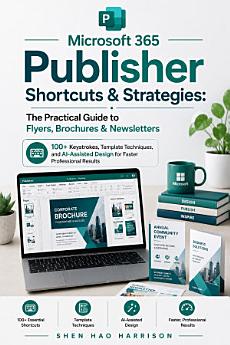
Microsoft 365 Publisher Shortcuts & Strategies: The Practical Guide to Flyers, Brochures & Newsletters: 100+ Keystrokes, Template Techniques, and AI-Assisted Design for Faster Professional Results
Shen Hao Harrison
Excellent Trust Press
Ebook
198
Pages
family_home
Eligible
info
About this ebook
This is a practical guide to Microsoft 365 Publisher, teaching how to create flyers, brochures, and newsletters with over 100 keyboard shortcuts and simple methods to work faster, along with template techniques and AI-assisted design strategies for professional results, written in clear and easy language so everyone can understand, covering how to use templates to start projects without starting from nothing, how to change colours and fonts on every page at once, and how to use artificial intelligence with Microsoft Designer to help with design by telling the AI your idea to get a design started, then taking that AI design into Publisher to finish it, with special advice for each type of project including writing strong headlines and using bullet points for flyers, choosing a fold and placing contact information for brochures, and setting up columns and master pages for newsletters, along with getting projects ready for printing including the difference between printing at home and using a professional print shop, saving work as a PDF correctly for both situations, and ensuring the final product looks just like planned, with Part 1 covering starting fast and smart including knowing your goal, using built-in templates, finding good templates online, and setting up page size for flyers and brochures, while Part 2 covers must-know keyboard shortcuts for file and program operations including Ctrl+N for new, Ctrl+O for open, Ctrl+S for save, F12 for Save As, Ctrl+P for print, editing shortcuts like Ctrl+Z for undo, Ctrl+Y for redo, Ctrl+C for copy, Ctrl+X for cut, Ctrl+V for paste, Ctrl+A for select all, and text box shortcuts for increasing and decreasing font size with Ctrl+Shift+> and Ctrl+Shift+<, bold with Ctrl+B, italic with Ctrl+I, and alignment with Ctrl+L, Ctrl+E, and Ctrl+R, and Part 3 covering pro techniques for templates including breaking apart templates to change them, the right way to change colours in a template using theme colours and custom colour schemes, changing fonts on every page at once with Replace Fonts, replacing template pictures with your own, and fixing picture problems with crop, fit, and wrap text, and Part 4 covering using AI for easier design with Microsoft Designer including what Microsoft Designer is, how to make a quick design with AI, writing a good prompt by defining the subject, specifying style or mood, including specific elements, and stating what to avoid, and taking an AI design into Publisher to finish it, and Part 5 covering strategies for specific projects including key parts of a good flyer with strong headlines, essential details, the right picture, call to action, and clean design, using big text for headlines with font sizes between 60-120 points, using bullet points not paragraphs for easy scanning, choosing a fold for brochures including bi-fold and tri-fold options, designing the first panel for grabbing attention, putting contact information on the back, using master pages for consistent newsletter design, using columns for easy reading, and adding pull quotes to make content interesting, and Part 6 covering final checks and printing including checking for spelling mistakes with F7, viewing work as Two-Page Spread, saving for a print shop versus printing at home, and exporting work as a PDF with Ctrl+Shift+G, making this essential reading for anyone who needs to create professional-looking materials without spending a lot of time or needing advanced design skills. microsoft publisher shortcuts guide, publisher flyer brochure newsletter, publisher keyboard shortcuts tips, publisher templates techniques, publisher ai design copilot, publisher page setup margins, publisher master pages consistent, publisher replace fonts globally, publisher crop fit wrap text, publisher bi-fold tri-fold brochure, publisher pull quotes columns, publisher spell check f7, publisher two-page spread view, publisher print shop pdf settings, publisher export pdf ctrl shift g, publisher beginner step by step, publisher design strategies, publisher color schemes themes, publisher text box formatting, publisher professional results
This is a practical guide to Microsoft 365 Publisher, teaching how to create flyers, brochures, and newsletters with over 100 keyboard shortcuts and simple methods to work faster, along with template techniques and AI-assisted design strategies for professional results, written in clear and easy ...
Discover more
About the author
Shen Hao Harrison is a technology writer and strategic thinker who specialises in making complex innovations accessible to everyone. He studies how emerging technologies reshape our world, with a particular focus on artificial intelligence and its practical applications. His work blends analytical clarity with creative vision, helping readers understand the forces shaping tomorrow's world. For over a decade, he has written about technological change, distilling intricate subjects into clear, engaging narratives. His writing reflects a commitment to helping people navigate a rapidly evolving digital landscape with confidence and understanding.
Shen Hao Harrison is a technology writer and strategic thinker who specialises in making complex innovations accessible to everyone. He studies how emerging technologies reshape our world, with a particular focus on artificial intelligence and its practical applications. His work blends analytica...
Rate this ebook
Tell us what you think.
Reading information
Smartphones and tablets
Install the Google Play Books app for Android and iPad/iPhone. It syncs automatically with your account and allows you to read online or offline wherever you are.
Laptops and computers
You can listen to audiobooks purchased on Google Play using your computer's web browser.
eReaders and other devices
To read on e-ink devices like Kobo eReaders, you'll need to download a file and transfer it to your device. Follow the detailed Help Center instructions to transfer the files to supported eReaders.